How to Add Addons to Your Server
Minecraft Bedrock addons enhance your gameplay with custom content. Follow these steps to add them to your Purpify server.
Important: Start your server at least once to generate all necessary files before continuing.
1 Prepare Your Addon
For the server to recognize your addon, it must be in the correct folder structure. Here's how to prepare it:
CRUCIAL: The server requires addons to be in a proper folder structure, not as .zip, .mcpack, or .mcaddon files. The files must be extracted and in the correct location.
If you have a .mcaddon or .mcpack file:
- Rename the file extension from .mcaddon/.mcpack to .zip
- Right-click the .zip file and select "Extract All..."
- Choose a destination folder and extract
Check the folder structure:
After extracting, open the folder. You should see these files directly inside (not in another subfolder):
manifest.json(required)pack_icon.png(optional)- Other resource/behavior pack files
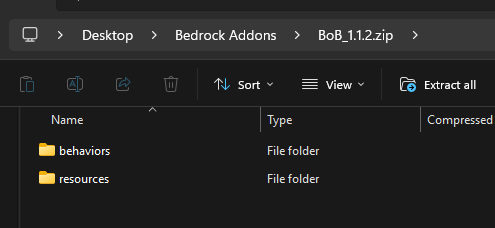
Correct: Files are directly in the main folder
Common Issue - Double Folders:
If you see another folder with the same name inside your extracted folder, you need to move its contents up one level. The server won't load the addon if the files are nested too deep.
Example of WRONG structure:
Should be:
If you see another folder with the same name inside your extracted folder, you need to move its contents up one level. The server won't load the addon if the files are nested too deep.
Example of WRONG structure:
behavior_packs/MyAddon/MyAddon/manifest.json
Should be:
behavior_packs/MyAddon/manifest.json
Tip: The folder name doesn't matter, but make sure it's descriptive and doesn't contain spaces or special characters.
2 Upload Addon to Your Server
Now that your addon is properly prepared, you'll need to upload the folder containing the manifest.json file to the correct location on your server:
Important: When you open the folder, you should see the
manifest.json file and other pack files immediately - not another folder with the same name.
- Log in to your Purpify Control Panel
- Navigate to the File Manager
- Go to the appropriate folder:
- For Resource Packs: Open the
resource_packsfolder - For Behavior Packs: Open the
behavior_packsfolder
- For Resource Packs: Open the
- Upload the entire addon folder (the one containing the
manifest.jsonfile)

Upload the folder to the correct location (behavior_packs or resource_packs)
Folder Structure Should Be:
behavior_packs/YourPackName/manifest.json (Correct)behavior_packs/YourPackName/YourPackName/manifest.json (Wrong - too many folders deep)
3 Configure Resource Packs
- Go to the
Worldsfolder and open theBedrock Levelfolder - Create or edit the
world_resource_packs.jsonfile - Find your addon's UUID and version by opening the
manifest.jsonfile in your resource pack folder

Find the UUID and version in the header section of manifest.json
Single Resource Pack:
[
  {
    "pack_id": "YOUR-UUID-HERE",  // Replace with the UUID from manifest.json
    "version": [1, 0, 0]          // Replace with the version from manifest.json
  }
]
Multiple Resource Packs:
[
  {
    "pack_id": "FIRST-UUID-HERE",
    "version": [1, 0, 0]
  },
  {
    "pack_id": "SECOND-UUID-HERE",
    "version": [1, 0, 0]
  }
]
Note: Add one entry per resource pack. Don't forget to add a comma after each
} except for the last one.
4 Configure Behavior Packs
- In the same
Bedrock Levelfolder, create or editworld_behavior_packs.json - Find your behavior pack's UUID and version in its
manifest.jsonfile
Single Behavior Pack:
[
  {
    "pack_id": "YOUR-UUID-HERE",  // From the behavior pack's manifest.json
    "version": [1, 0, 0]          // From the behavior pack's manifest.json
  }
]
Multiple Behavior Packs:
[
  {
    "pack_id": "FIRST-UUID-HERE",
    "version": [1, 0, 0]
  },
  {
    "pack_id": "SECOND-UUID-HERE",
    "version": [1, 0, 0]
  }
]
Important: The UUID and version must exactly match what's in your addon's
manifest.json file. Even a single character difference will prevent the pack from loading.
5 Restart Your Server
After configuring both JSON files, restart your server to apply the changes.
Need Help? If you encounter any issues, make sure:
- The UUID and version match exactly from the manifest.json file
- You've added the correct number of commas between entries
- Both JSON files are properly formatted
- The server has been restarted after making changes